


Telemetry – configurations, working procedure
Required equipment’s
- Raspberry pi device
- Ethernet cable
- SD card
- Standard USB keyboard
-
TV/Monitor with HDMI input
Telemetry
Telemetry is the automatic recording and transmission of data from remote or inaccessible sources to an IT system in a different location for monitoring and analysis.
Telemetry Components
- XConf Server
- RPI Board with RDK Broadband image
- Tftp Server
Steps to build code
- mkdir <workspace dir>
- cd <workspace dir>
- repo init -u https://code.rdkcentral.com/r/manifests -b kirkstone -m rdkb-extsrc.xml
- repo sync -j`nproc` –no-clone-bundle
- MACHINE=raspberrypi4-rdk-broadband source meta-cmf-raspberrypi/setup-environment //For 32 Bit Image
- MACHINE=raspberrypi4-64-rdk-broadband source meta-cmf-raspberrypi/setup-environment //For 64 Bit Image
- bitbake rdk-generic-broadband-image
Steps to flash image
- The image will be available under build-raspberrypi-rdk-broadband/tmp/deploy/images/raspberrypi-rdk-broadband
- Copy the image “rdkb-generic-broadband-image_default_<xx>.rootfs.rpi-sdimg” to your server.
- To flash the image
dmesg
mount
umount <partition-mountpoint>
sudo dd if=<rpi sdimg> of=/dev/sdb bs=1
- Remove the SD card and insert it to the Raspberry Pi SD card slot
- Bring up the device
XConf server
- Refer XConf Server for XConf Server setup details.
- XConf server page: https://xconf.rdkcentral.com
- Common configurations in UI
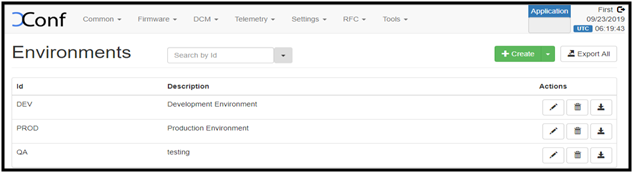
Define Environments
- URL: https://xconf.rdkcentral.com:19093/admin/ux/#/environment/all
- Flow: XConf-server -> Common -> Environments
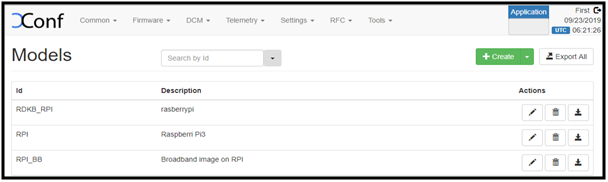
Define Models
- URL: https://xconf.rdkcentral.com:19093/admin/ux/#/model/all
- Flow: XConf-server -> Common -> Models
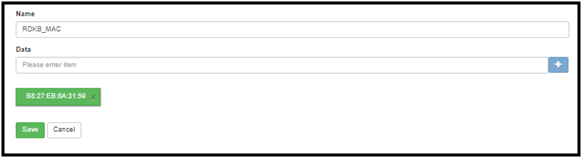
Define MAC List
- URL: https://xconf.rdkcentral.com:19093/admin/ux/#/namespacedlist/MAC_LIST
- Flow: XConf-server -> Common -> MAC Lists -> Select the Id -> Add your MAC
Configuring Telemetry on XConf server
Log upload
-
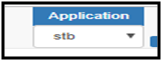
Change Application to stb in top right corner of the window
-
Defining the formula
|
URL |
|||
|
Flow |
XConf-server ->DCM -> Formulas -> Create |
||
|
Name |
<Unique name for log upload > |
||
|
Description |
<Enter a short description> |
||
|
Percentage |
100 |
Priority |
4 |
|
Build condition |
estbMacAddress is <MAC-Address> |
||
Sample
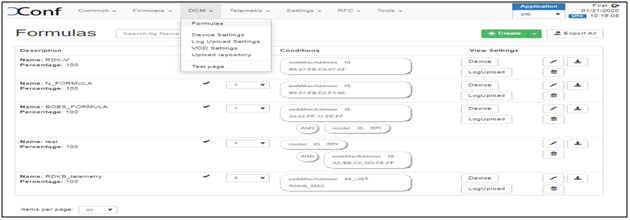
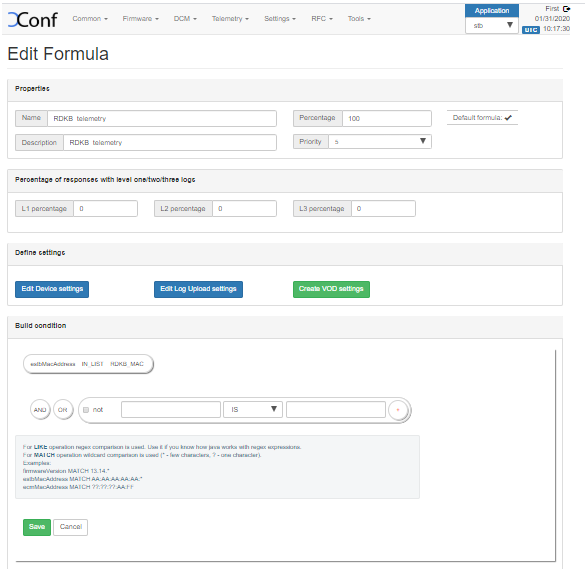
As soon as the formula is saved, displays the device settings and Log upload settings options

-
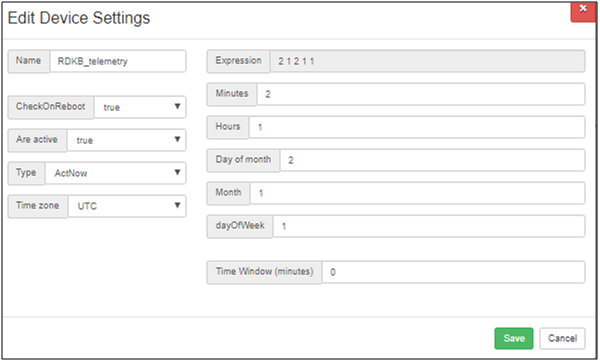
Device Settings
Name | RDKB_telemetry |
CheckOnReboot | true |
Are active | true |
Expression | 2 1 2 1 1 |
-
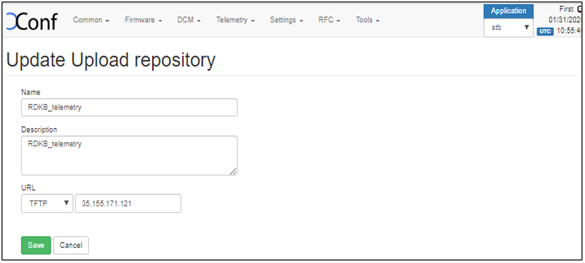
Defining the Upload repositories
URL | https://xconf.rdkcentral.com:19093/admin/ux/#/uploadrepository |
Flow | XConf-server ->DCM -> Upload repositories |
Name | RDKB_telemetry |
Description | RDKB_telemetry |
URL | tftp : xconf.rdkcentral.com |
-
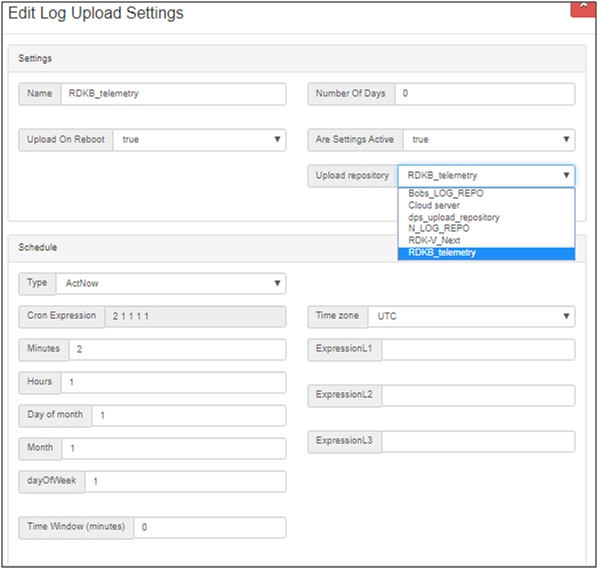
Log upload settings
Name | <Enter the name given during Log upload formula creation> |
Upload On Reboot | true |
Number of Days | 1 |
Are settings active | true |
Upload Repository | RDKB_telemetry |
Cron Expression | 2 1 1 1 1 |
-
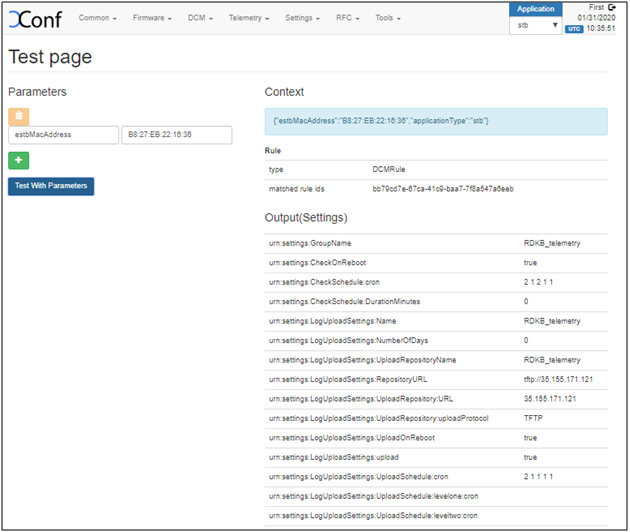
Test Page
URL | https://xconf.rdkcentral.com:19093/admin/ux/#/formulas/all |
Path | Xconf-server-> DCM -> Test Page |
Telemetry
-
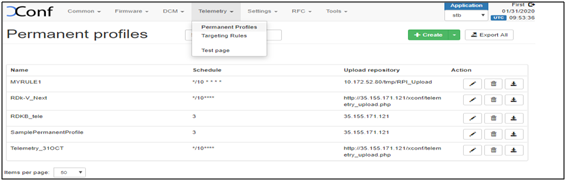
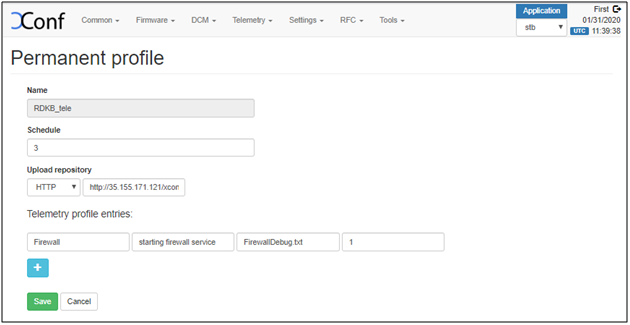
Defining Telemetry profile
URL | |
Path | XConf-server-> Telemetry->Permanent Profiles -> Create |
Sample :
-
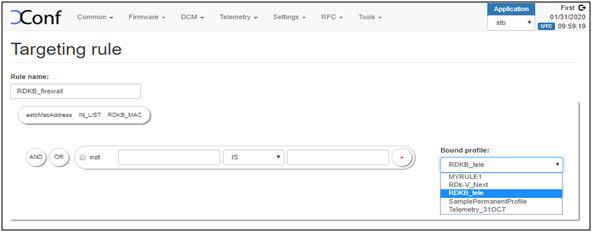
Create Targeting rule
URL | |
Path | XConf-server-> Telemetry->Targeting rule -> Create |
- Give the Unique rule name
- Select the rule. Here, used estbMacAddress as the rule
- Select the Bound profile (Telemetry Permanent Profile Name)
Sample
-
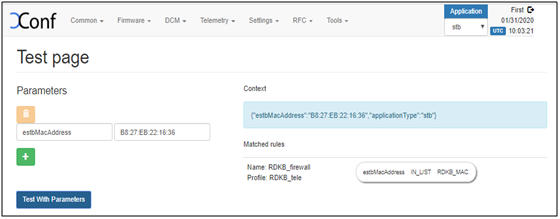
Test Page
URL | |
Path | XConf-server-> Telemetry->Test Page |
- To test whether the configured profile details are retrieved properly from XConf-Server
- Give the rule specified in “Targeting Rule” section i.e., estbMacAddress here
Sample:
Configuring Telemetry on Raspberry pi
- Once the board is up, go to /etc/dcm.properties and add the below details
LOG_SERVER=xconf.rdkcentral.com DCM_LOG_SERVER=https://xconf.rdkcentral.com/xconf/logupload.php DCM_LOG_SERVER_URL=https://xconf.rdkcentral.com:19093/loguploader/getSettings DCM_SCP_SERVER=xconf.rdkcentral.com DCM_HTTP_SERVER_URL=https://xconf.rdkcentral.com/xconf/telemetry_upload.php DCM_LA_SERVER_URL=https://xconf.rdkcentral.com/xconf/logupload.php |
- Restart the dcm-log service using “systemctl restart dcm-log”
- To check the status of the service “systemctl status dcm-log”
- By triggering the service, RPI starts uploading the logs to the XConf-Server
- The log upload and Telemetry markers can be uploaded via tftp and http
- The profile can be verified using curl, conf file, through logs and in server as below
1. CURL
- Syntax : curl -i ‘http://<IP>:19092/loguploader/getSettings?estbMacAddress=<MAC>’
Sample: 1  TFTP

root@RaspberryPi-Gateway:~# ifconfig erouter0
erouter0  Link encap:Ethernet  HWaddr <MAC>
          inet addr:<Device IP>  Bcast:0.0.0.0  Mask:255.255.255.0
          inet6 addr: fe80::ba27:ebff:fe22:1636/64 Scope:Link
          UP BROADCAST RUNNING MULTICAST  MTU:1500  Metric:1
          RX packets:18748 errors:0 dropped:0 overruns:0 frame:0
          TX packets:3081 errors:0 dropped:0 overruns:0 carrier:0
          collisions:0 txqueuelen:1000
          RX bytes:2614475 (2.4 MiB)  TX bytes:590848 (577.0 KiB)

root@RaspberryPi-Gateway:~# curl -i 'https://xconf.rdkcentral.com:19092/loguploader/getSettings?estbMacAddress=<MAC>'
HTTP/1.1 200 OK

Date: Fri, 31 Jan 2020 10:59:09 GMT
Content-Type: application/json
Transfer-Encoding: chunked
Server: Jetty(9.2.1.v20140609)

{"urn:settings:GroupName":"RDKB_telemetry","urn:settings:CheckOnReboot":true,"urn:settings:CheckSchedule:cron":"2 1 2 1 1","urn:settings:CheckSchedule:DurationMinutes":0,"urn:settings:LogUploadSettings:Message":null,"urn:settings:LogUploadSettings:Name":"RDKB_telemetry","urn:settings:LogUploadSettings:NumberOfDays":0,"urn:settings:LogUploadSettings:UploadRepositoryName":"RDKB_telemetry","urn:settings:LogUploadSettings:RepositoryURL":"tftp://xconf.rdkcentral.com","urn:settings:LogUploadSettings:UploadOnReboot":true,"urn:settings:LogUploadSettings:UploadImmediately":false,"urn:settings:LogUploadSettings:upload":true,"urn:settings:LogUploadSettings:UploadSchedule:cron":"2 1 1 1 1","urn:settings:LogUploadSettings:UploadSchedule:levelone:cron":null,"urn:settings:LogUploadSettings:UploadSchedule:leveltwo:cron":null,"urn:settings:LogUploadSettings:UploadSchedule:levelthree:cron":null,"urn:settings:LogUploadSettings:UploadSchedule:DurationMinutes":0,"urn:settings:VODSettings:Name":null,"urn:settings:VODSettings:LocationsURL":null,"urn:settings:VODSettings:SRMIPList":null,"urn:settings:TelemetryProfile":{"id":"72ac2ca9-b248-4a5e-b120-27ff37382564","telemetryProfile":[{"header":"Firewall","content":"starting firewall service","type":"FirewallDebug.txt","pollingFrequency":"1"}],"schedule":"3","expires":0,"telemetryProfile:name":"RDKB_tele","uploadRepository:URL":"xconf.rdkcentral.com","uploadRepository:uploadProtocol":"TFTP"}}

Sample: 2  HTTP

root@RaspberryPi-Gateway:~# curl -i 'https://xconf.rdkcentral.com:9092/loguploader/getSettings?estbMacAddress=<MAC>'
HTTP/1.1 200 OK

Date: Fri, 31 Jan 2020 12:15:26 GMT
Content-Type: application/json
Transfer-Encoding: chunked
Server: Jetty(9.2.1.v20140609)

{"urn:settings:GroupName":"RDKB_telemetry","urn:settings:CheckOnReboot":true,"urn:settings:CheckSchedule:cron":"2 1 2 1 1","urn:settings:CheckSchedule:DurationMinutes":0,"urn:settings:LogUploadSettings:Message":null,"urn:settings:LogUploadSettings:Name":"RDKB_telemetry","urn:settings:LogUploadSettings:NumberOfDays":0,"urn:settings:LogUploadSettings:UploadRepositoryName":"RDKB_telemetry","urn:settings:LogUploadSettings:RepositoryURL":"http://xconf.rdkcentral.com/xconf/logupload.php","urn:settings:LogUploadSettings:UploadOnReboot":true,"urn:settings:LogUploadSettings:UploadImmediately":false,"urn:settings:LogUploadSettings:upload":true,"urn:settings:LogUploadSettings:UploadSchedule:cron":"2 1 1 1 1","urn:settings:LogUploadSettings:UploadSchedule:levelone:cron":null,"urn:settings:LogUploadSettings:UploadSchedule:leveltwo:cron":null,"urn:settings:LogUploadSettings:UploadSchedule:levelthree:cron":null,"urn:settings:LogUploadSettings:UploadSchedule:DurationMinutes":0,"urn:settings:VODSettings:Name":null,"urn:settings:VODSettings:LocationsURL":null,"urn:settings:VODSettings:SRMIPList":null,"urn:settings:TelemetryProfile":{"id":"72ac2ca9-b248-4a5e-b120-27ff37382564","telemetryProfile":[{"header":"Firewall","content":"starting firewall service","type":"FirewallDebug.txt","pollingFrequency":"1"}],"schedule":"3","expires":0,"telemetryProfile:name":"RDKB_tele","uploadRepository:URL":"https://xconf.rdkcentral.com/xconf/telemetry_upload.php","uploadRepository:uploadProtocol":"HTTP"}}
2. Configuration file
- Once the profile details are successfully retrieved , the conf file will be created under /tmp which has the server configurations
- The telemetry markers are compared with the corresponding log files and if the match is found then the markers are uploaded to the http://xconf.rdkcentral.com/xconf/upload/
Sample 1: tftp
root@RaspberryPi-Gateway:~# cat /tmp/DCMSettings.conf

urn:settings:GroupName=RDKB_telemetry
urn:settings:CheckOnReboot=true
urn:settings:CheckSchedule:cron=2 1 2 1 1
urn:settings:CheckSchedule:DurationMinutes=0
urn:settings:LogUploadSettings:Message=null
urn:settings:LogUploadSettings:Name=RDKB_telemetry
urn:settings:LogUploadSettings:NumberOfDays=0
urn:settings:LogUploadSettings:UploadRepositoryName=RDKB_telemetry
urn:settings:LogUploadSettings:RepositoryURL=tftp://xconf.rdkcentral.com
urn:settings:LogUploadSettings:UploadOnReboot=true
urn:settings:LogUploadSettings:UploadImmediately=false
urn:settings:LogUploadSettings:upload=true
urn:settings:LogUploadSettings:UploadSchedule:cron=2 1 1 1 1
urn:settings:LogUploadSettings:UploadSchedule:levelone:cron=null
urn:settings:LogUploadSettings:UploadSchedule:leveltwo:cron=null
urn:settings:LogUploadSettings:UploadSchedule:levelthree:cron=null
urn:settings:LogUploadSettings:UploadSchedule:DurationMinutes=0
urn:settings:VODSettings:Name=null
urn:settings:VODSettings:LocationsURL=null
urn:settings:VODSettings:SRMIPList=null
"urn:settings:TelemetryProfile":{"id":"72ac2ca9-b248-4a5e-b120-27ff37382564","telemetryProfile":[{"header" : "Firewall","content" : "staring firewall service","type" : "FirewallDebug.txt","pollingFrequency":"1"}],"schedule":"3","expires":0,"telemetryProfile:name":"RDKB_tele,"uploadRepository:URL":"xconf.rdkcentral.com","uploadRepository:uploadProtocol":"TFTP"}


Sample 2:  http
root@RaspberryPi-Gateway:~# cat /tmp/DCMSettings.conf

urn:settings:GroupName=RDKB_telemetry
urn:settings:CheckOnReboot=true
urn:settings:CheckSchedule:cron=2 1 2 1 1
urn:settings:CheckSchedule:DurationMinutes=0
urn:settings:LogUploadSettings:Message=null
urn:settings:LogUploadSettings:Name=RDKB_telemetry
urn:settings:LogUploadSettings:NumberOfDays=0
urn:settings:LogUploadSettings:UploadRepositoryName=RDKB_telemetry
urn:settings:LogUploadSettings:RepositoryURL= https://xconf.rdkcentral.com/xconf/logupload.php
urn:settings:LogUploadSettings:UploadOnReboot=true
urn:settings:LogUploadSettings:UploadImmediately=false
urn:settings:LogUploadSettings:upload=true
urn:settings:LogUploadSettings:UploadSchedule:cron=2 1 1 1 1
urn:settings:LogUploadSettings:UploadSchedule:levelone:cron=null
urn:settings:LogUploadSettings:UploadSchedule:leveltwo:cron=null
urn:settings:LogUploadSettings:UploadSchedule:levelthree:cron=null
urn:settings:LogUploadSettings:UploadSchedule:DurationMinutes=0
urn:settings:VODSettings:Name=null
urn:settings:VODSettings:LocationsURL=null
urn:settings:VODSettings:SRMIPList=null
"urn:settings:TelemetryProfile":{"id":"72ac2ca9-b248-4a5e-b120-27ff37382564","telemetryProfile":[{"header" : "Firewall","content" : "starting firewall service","type" : "FirewallDebug.txt","pollingFrequency":"1"}],"schedule":"3","expires":0,"telemetryProfile:name":"RDKB_tele","uploadRepository:URL":"http://xconf.rdkcentral.com/xconf/telemetry_upload.php","uploadRepository:uploadProtocol":"HTTP"}
3. Logs
- Log file to monitor and analyze the files which are uploaded to server
- /rdklogs/logs/dcmscript.log
TFTP
Uploading Logs with DCM UploadOnReboot set to true
200131-09:23:25.892859 dca : Direct Connection HTTP RESPONSE CODE:
200131-09:23:25.899693 dca: Direct connection success - ret:0
200131-09:23:25.908621 dca: Json message successfully submitted.
01-31-20-09-23AM-ArmConsolelog.txt.0
01-31-20-09-23AM-BootTime.log
01-31-20-09-23AM-CRlog.txt.0
01-31-20-09-23AM-Consolelog.txt.0
01-31-20-09-23AM-FirewallDebug.txt
01-31-20-09-23AM-LM.txt.0
01-31-20-09-23AM-MnetDebug.txt
01-31-20-09-23AM-PAMlog.txt.0
01-31-20-09-23AM-PARODUSlog.txt.0
01-31-20-09-23AM-PSMlog.txt.0
01-31-20-09-23AM-TDMlog.txt.0
01-31-20-09-23AM-TR69log.txt.0
01-31-20-09-23AM-WEBPAlog.txt.0
01-31-20-09-23AM-WiFilog.txt.0
01-31-20-09-23AM-dcmscript.log
01-31-20-09-23AM-swupdate.log
01-31-20-09-23AM-version.txt
01-31-20-09-23AM-wifihealth.txt
Uploading logs 01-31-20-09-23AM.tgz onto xconf.rdkcentral.com
Uploading logs 01-31-20-09-23AM.tgz onto xconf.rdkcentral.com
Moving to Previous Logs Backup Folder
HTTP
Uploading Logs with DCM UploadOnReboot set to true
200131-11:22:00.729982 dea: Sleeping for 10 before upload.
200131-11:22:11.392670 dca: Direct connection success - ret:0
200131-11:22:11.399931 dca: Json message successfully submitted.
01-31-20-11-22AM-Consolelog.txt.0
01-31-20-11-22AM-dcmscript.log
01-31-20-11-22AM-version.txt
01-31-20-11-22AM-wifihealth.txt
Uploading logs 01-31-20-11-21AM.tgz onto https://xconf.rdkcentral.com/xconf/logupload.php
Moving to Previous Logs Backup Folder
- /rdklogs/logs/telemetry.log
TFTP
TFTPIP:xconf.rdkcentral.com
200131-09:23:15.165431 dea: Using Direct commnication
number of proUPdell:42
Upload protocol telemetry is:TFTP
before TFTP Load-----------
number of delim:17
tftp ip is :xconf.rdkcentral.com
rcl_json.txt available, going for tftp upload
0
TFTP Telemetry succeded !!!
call uploadLogOnReboot
Sleeping for seven minutes
Done sleeping prev logpath /zdklogs/logs//PreviousLogs
ckp100----------prev log path------------/rdkloga/logs//PreviousLoga
ckp101------------upload log--------------true
total 390

drwxr-xr-x    2 root    root             1024 Jan 31 09:23 .
drwxr-xr-x    4 root    root             1024 Jan 31 09:23 . .
-rw-r--r--    1 root    root            15510 Jan 31 09:48 01-31-20-09-23AM-ArmConsolelog.txt.Ο
-rw-r--r--    1 root    root             214  Jan 31 09:12 01-31-20-09-23AM-BootTime.log
-rw-r--r--    1 root    root            18632 Jan 31 09:12 01-31-20-09-23AM-CRlog.txt.0
-rw-r--r--    1 root    root            73531 Jan 31 09:23 01-31-20-09-23AM-Consolelog.txt.0
-rw-r--r--    1 root    root            50543 Jan 31 09:12 01-31-20-09-23AM-FirewallDebug.txt
-rw-r--r--    1 root    root            20141 Jan 31 09:23 01-31-20-09-23AM-LM.txt.0
-rw-r--r--    1 root    root            17514 Jan 31 09:12 01-31-20-09-23AM-MnetDebug.txt
-rw-r--r--    1 root    root            46715 Jan 31 09:48 01-31-20-09-23AM-PAMlog.txt.0
-rw-r--r--    1 root    root            16562 Jan 31 09:20 01-31-20-09-23AM-PARODUSiog.txt.0
-rw-r--r--    1 root    root            50662 Jan 31 09:48 01-31-20-09-23AM-P5Mlog.txt.0
-rw-r--r--    1 root    root             1478 Jan 31 09:12 01-31-20-09-23AM-TDMlog.txt.0
-rw-r--r--    1 root    root            12187 Jan 31 09:12 01-31-20-09-23AM-TR69log.txt.0
-rw-r--r--    1 root    root             6687 Jan 31 09:23 01-31-20-09-23AM-WEBPAlog.txt.0
-rw-r--r--    1 root    root            29083 Jan 31 09:12 01-31-20-09-23AM-WiFilog.txt.0
-rw-r--r--    1 root    root              460 Jan 31 09:23 01-31-20-09-23AM-domscript.log
-rw-r--r--    1 root    root             2079 Jan 31 09:16 01-31-20-09-23AM-dcmscript.log
-rw-r--r--    1 root    root              176 Jan 31 09:23 01-31-20-09-23AM-version.txt
-rw-r--r--    1 root    root            12410 Jan 31 09:22 01-31-20-09-23AM-wifihealth.txt
number of proUPde12:42
Upload protocol logupload is TFTP
0
Done Uploading Logs and removing rtl_json.txt file
HTTP
Upload Protocol is:HTTP
call uploadLogOnReboot
Sleeping for seven minutes
Done sleeping prev logpath /rdklogs/logs//PreviousLogs
ckp100-------------prev log path-------------/rdklogs/logs//PreviousLogs
ckp101---------------------upload log-----true
total 13
drwxr-xr-x    2 root    root             1024 Jan 31 09:23 .
drwxr-xr-x    4 root    root             1024 Jan 31 09:23 . .
-rw-r--r--    1 root    root            73531 Jan 31 09:23 01-31-20-09-23AM-Consolelog.txt.0
 w-r--r--    1 root    root            2079 Jan 31 09:16 01-31-20-09-23AM-dcmscript.log
-rw-r--r--    1 root    root              176 Jan 31 09:23 01-31-20-09-23AM-version.txt
-rw-r--r--    1 root    root            12410 Jan 31 09:22 01-31-20-09-23AM-wifihealth.txt
200131-09:23:15.165431 dea: Using Direct communication
number of proUPdell:42
Upload protocol telemetry is:HTTP
before HTTP upload-----------
number of HTTP is:42
HTTPLOGUPLOADURL:https://xconf.rdkcentral.com/xconf/logupload.php
------CURL_CMD2:curl -w '%{http_code}n' -F filename=@/rdklogs/logs//PreviousLogs/E4:5F:01:F4:EE:2B-Logs-05-03-24-12-11PM.tgz 'https://xconf.rdkcentral.com/xconf/logupload.php' --connect-timeout 30 -m 30
http_code is :200
HTTP log upload succeded!!!!!!!!!!!!!!!!!
ckp100-----------------------------------
number of proUPdell:42
Upload protocol telemetry is:HTTP
before HTTP log upload
HTTPLOGUPLOADURL:https://xconf.rdkcentral.com/xconf/logupload.php
upload log file is:05-03-24-12-11PM.tgz
------CURL_CMD2:curl -w '%{http_code}n' -F filename=@/rdklogs/logs//PreviousLogs/E4:5F:01:F4:EE:2B-Logs-05-03-24-12-11PM.tgz 'https://xconf.rdkcentral.com/xconf/logupload.php' --connect-timeout 100 -m 100
http_code is :200
HTTP log upload succeded!!!!!!!!!!!!!!!!!
Done Uploading Logs and removing rtl_json.txt file
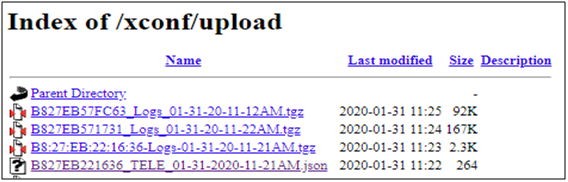
4. XConf-Server
- The tar file (of all logs) and JSON file of telemetry will be uploaded
- Sample
TFTP
.png)
HTTP
Configuring more entries to a profile
- Go to Telemetry -> Permanent Profile
- Under “Telemetry Profile entries” add your new required markers
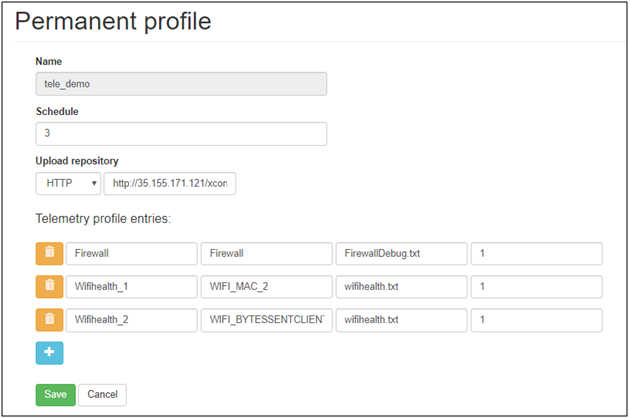
- Here, added 2 new markers for wifihealth.txt file
1. WIFI_MAC_2 with the profile name as “Wifihealth_1” and polling frequency as 1
2. WIFI_BYTESSENTCLIENTS with the profile name as “Wifihealth_2” and polling frequency as 1
- Save
- In RPI, make sure that you stopped the rdkbLogMontior service, in order to stop the log rotation process (systemctl stop rdkbLogMonitor)
- Now restart the dcm-log service using systemctl restart dcm-log
- With successful response, tar file and JSON file gets uploaded to the XConf-Server
- Open the upload JSON file in the browser
-
We could see the profile entries with the number of times the specified marker has appeared in the file.
Sample:

{"searchResult":[{"Firewall":"1"},{"Wifihealth_1":"2"},{"Wifihealth_2":"2"},{"Profile":"RDKB"},{"mac":"<MAC>"},{"erouterIpv4":"192.168.30.125"},{"erouterIpv6":"null"},{"PartnerId":"RDKM"},{"AccountId":"Unknown"},{"Version":"rdkb-generic-broadband-image_default_20200224150713"},{"Time":"2020-02-26 12:23:51"}]}
NOTE: JSON file holds only the number of times the particular marker has appeared in the respective log file. To see the complete log file, need to download the tar file uploaded and extract the files to see the complete logs or value of the parameters
Observations
- Pushing script from XConf
Currently pushing the script from XConf to the target device is not possible due to the security issue, as it may lead to downloading the licensed file to the vulnerable device. The pushing may also lead to removal of file from rootfs, so this is not advised to do for now. Whereas, we can initiate the download from device through tftp/curl command either from the script or from console.
- telemetry target type
Target type is provided to handle dynamic parameters change. We have 4 target types.
1. # 0 if as part of normal execution
2. # 1 if initiated due to an XCONF update
3. # 2 if forced execution before log upload
4. # 3 if modify the cron schedule
During boot-up or service start, target type update will be initiated.
On each initiation, whenever it finds the markers in the log files, it provides the search results with marker details, when it doesn’t find, it just provides the basic RDKB profile details (without markers). It all depends on the markers availability in the log files.
Currently Type 1 and 2 are supported.
- Empty JSON message
On having the Schedule type in DCM either as “ActNow” or “CronExpression”, with the expression in schedule under telemetry profile. JSON messages are seen with generic RDKB profile details on every 5 min / 10 mins (Expression: /5 * * * * or */10 * * * *). Once in a day uploads JSON with markers to the server.
This is seen due to the schedule expression. As a workaround, we can give the schedule in numbers (Example: 2 / 5 / 10)
The ticket is in place to implement the cron expression support in RPI. Once it is in place, the empty JSON messages will not be seen.